
In the
last post, we wired up workload identity on an Azure Arc-enabled Kubernetes cluster and pulled a secret out of Key Vault without a single credential going anywhere near the pod.
Which was very satisfying… and also completely useless, because all that pod did was print a secret to the console and then die.
So let’s fix that. I want to take the exact same trust relationship and put it behind something I would actually run - a PowerShell workload, on a schedule, doing real work against Microsoft Graph. No app registrations, no client secrets rotating every six months, no certificate quietly expiring at 2am on a Sunday.
In this post, let’s build a containerised PowerShell workload that runs on our local Arc-enabled cluster, authenticates to Microsoft Graph using workload identity, and reports on our Intune device estate on a schedule.
Where we left off
Quick recap, because everything here hangs off the lab we built last time. We have a local k3d cluster, connected to Azure with Arc, with the OIDC issuer and workload identity both enabled. We have a user-assigned managed identity in Azure, and a federated identity credential that tells Entra to trust tokens issued by our cluster for one specific Kubernetes service account - kv-reader.
That trust is the only thing we need. We are not going to touch it, we are just going to ask it to do something more interesting than printing a secret.
Getting started - Pre-requisites.
Software:
- Docker Desktop - we are building an image this time, not just running someone else’s
- k3d and kubectl
- The Azure CLI
- The finished lab from the previous post
PowerShell Modules:
Install the required PowerShell modules by running the following command:
$modules = @("Az.Accounts", "Az.ManagedServiceIdentity", "Microsoft.Graph.Applications")
$modules | ForEach-Object { Install-Module -Name $_ -Force -AllowClobber -Scope CurrentUser }
Those three are for your machine, not for the container. Az.ManagedServiceIdentity is where Get-AzUserAssignedIdentity lives, and Microsoft.Graph.Applications is where the service principal and app role assignment cmdlets live - it pulls Microsoft.Graph.Authentication down with it as a dependency.
The image we build later is a different story, and it gets Microsoft.Graph.Authentication on its own. Do not put Microsoft.Graph in a container. The meta-module drags in around 40 sub-modules and several hundred megabytes of cmdlets you are never going to call, and you will be waiting a very long time for your build to finish. Everything the workload needs - Connect-MgGraph and Invoke-MgGraphRequest - lives in the authentication module, and Invoke-MgGraphRequest can reach every endpoint in Graph anyway.
Giving the managed identity permission to Graph
Our managed identity can read Key Vault, because we gave it an RBAC role last time. Adding Graph API permissions isn’t as simple as last time, because the “API permissions” blade isn’t accessible in the portal.
I actually wrote about this a few years ago, when I needed a function app to talk to Graph. That post does it with raw Invoke-RestMethod calls, but for this scenario, let’s use the Microsoft Graph PowerShell SDK. (Not my favourite approach, but it’s nice to show how it can be done with the SDK.)
Graph application permissions are modelled in Entra as an app role assignment. The managed identity’s service principal is the principal, the Microsoft Graph service principal is the resource, and the permission itself is the app role.
What this actually means for us is three lookups and one assignment. Let’s create a script named Grant-GraphAppRole.ps1:
$graphAppId = '00000003-0000-0000-c000-000000000000'

Connect-MgGraph -Scopes 'Application.Read.All', 'AppRoleAssignment.ReadWrite.All' -NoWelcome

$principalId = (Get-AzUserAssignedIdentity -Name 'id-local-cluster-kv' -ResourceGroupName 'rg-arc-workload-identity').PrincipalId
$graphSp     = Get-MgServicePrincipal -Filter "appId eq '$graphAppId'"

$appRole = $graphSp.AppRoles |
    Where-Object { $_.Value -eq 'Device.Read.All' -and $_.AllowedMemberTypes -contains 'Application' }

$assignmentParams = @{
    ServicePrincipalId = $principalId
    BodyParameter      = @{
        principalId = $principalId
        resourceId  = $graphSp.Id
        appRoleId   = $appRole.Id
    }
}

New-MgServicePrincipalAppRoleAssignment @assignmentParams
Looking at the script, there’s a few things to clarify:
- The
$graphAppIdvariable is the well-known application id of Microsoft Graph. This is a universally unique ID, so it is safe to hardcode. - The
$principalIdvariable is the object id of the managed identity’s service principal. This is the same identity we federated last time, we are just granting it something new. - The
$appRolefilter checksAllowedMemberTypes -contains 'Application'. This matters! Graph publishes a delegated scope and an application role with the same name, and if you grab the wrong one your pod will authenticate perfectly and then get a 403 on every call. - We are granting
Device.Read.All(as application, not delegated) and nothing else. It is read only, and it is the only permission needed to enumerate devices.
Applying application permissions requires that the app registration has already received admin consent, so you will need Privileged Role Administrator or Global Administrator.
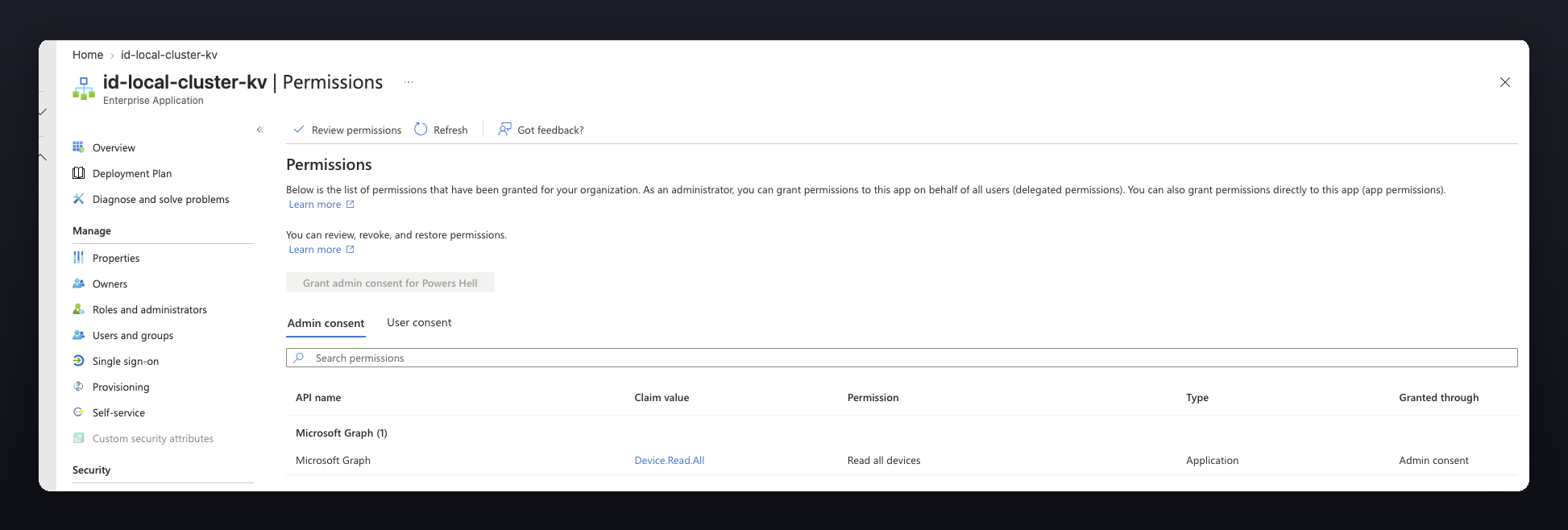
Once it has run, the permission shows up on the identity’s enterprise application, which is a nice way to prove it was configured correctly:
Swapping the projected token for a Graph token
Last time the Azure SDK did this part quietly for us, which was convenient but not very educational. Let’s do it in the open.
Any pod that carries the workload identity label gets four environment variables injected into it automatically, and the interesting one is AZURE_FEDERATED_TOKEN_FILE. That file holds a short-lived JWT, signed by our cluster, that says “this is the kv-reader service account”. We hand that to Entra as a client assertion, and Entra hands back an access token for Graph:
$assertion = (Get-Content -Path $env:AZURE_FEDERATED_TOKEN_FILE -Raw).Trim()

$body = @{
    client_id             = $env:AZURE_CLIENT_ID
    scope                 = 'https://graph.microsoft.com/.default'
    grant_type            = 'client_credentials'
    client_assertion_type = 'urn:ietf:params:oauth:client-assertion-type:jwt-bearer'
    client_assertion      = $assertion
}

$tokenEndpoint = "$($env:AZURE_AUTHORITY_HOST.TrimEnd('/'))/$($env:AZURE_TENANT_ID)/oauth2/v2.0/token"
$response      = Invoke-RestMethod -Method Post -Uri $tokenEndpoint -Body $body -ContentType 'application/x-www-form-urlencoded'

Connect-MgGraph -AccessToken (ConvertTo-SecureString $response.access_token -AsPlainText -Force) -NoWelcome
- The
$assertionvariable is the projected service account token, read straight off the pod filesystem. It is rotated by the kubelet, so read it at run time, never cache it. - The
$bodyhashtable is a bog standard client credentials grant, except that where a client secret would normally go we are sending a signed assertion instead. That substitution is the entire trick. - The
.defaultscope tells Entra to issue a token carrying every application permission the identity has already been granted - which is exactly theDevice.Read.Allwe assigned above.
And because everybody loves looking at claims, the script decodes both tokens and prints them:
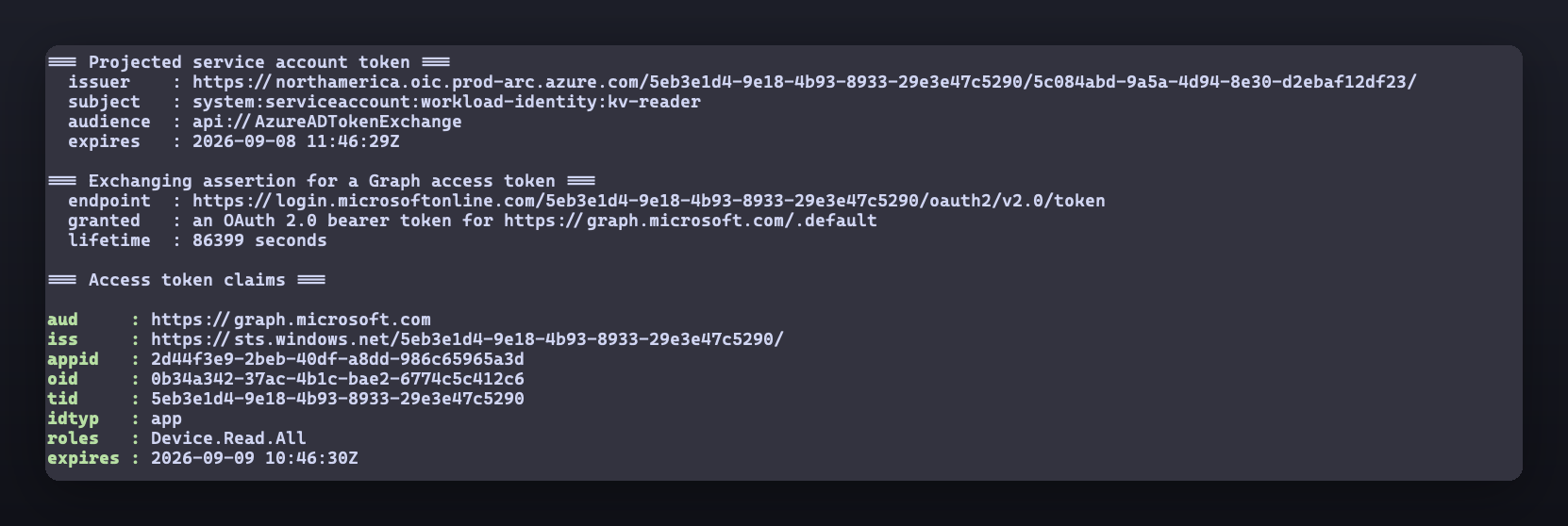
Look at what that actually shows. The service account token is issued by our cluster’s Arc OIDC issuer, its subject is system:serviceaccount:workload-identity:kv-reader, and its audience is api://AzureADTokenExchange. The token that comes back is audienced to Graph, idtyp is app, and roles is Device.Read.All. That’s the whole chain of trust, visible in one screen, with no secret involved anywhere!
From there it’s just basic Graph calls. I’m calling /devices on v1.0 rather than beta, because it is generally available and there is no reason to take a beta dependency for something this basic:
$uri = "https://graph.microsoft.com/v1.0/devices?`$top=20&`$select=displayName,operatingSystem,operatingSystemVersion,trustType,isCompliant,approximateLastSignInDateTime"
$devices = (Invoke-MgGraphRequest -Method GET -Uri $uri).value
Containerising the script
This is fairly basic. Let’s create a file named Dockerfile:
ARG BASE_IMAGE=mcr.microsoft.com/powershell:latest

FROM --platform=$BUILDPLATFORM alpine:3.20 AS modules
ARG GRAPH_AUTH_VERSION=2.36.1
ENV MODULE_DIR=/modules/Microsoft.Graph.Authentication

RUN apk add --no-cache curl unzip \
    && mkdir -p "${MODULE_DIR}/${GRAPH_AUTH_VERSION}" \
    && curl -sSL "https://www.powershellgallery.com/api/v2/package/Microsoft.Graph.Authentication/${GRAPH_AUTH_VERSION}" -o /tmp/graph.nupkg \
    && unzip -q /tmp/graph.nupkg -d "${MODULE_DIR}/${GRAPH_AUTH_VERSION}"

FROM ${BASE_IMAGE}
COPY --from=modules /modules /usr/local/share/powershell/Modules
WORKDIR /app
COPY Get-GraphDeviceReport.ps1 /app/Get-GraphDeviceReport.ps1
ENTRYPOINT ["pwsh", "-NoProfile", "-NonInteractive", "-File", "/app/Get-GraphDeviceReport.ps1"]
- The first stage fetches the module as a nupkg and unzips it. That looks like the long way round compared to
Install-Module, but it is faster, it leaves no PSGallery bootstrap in the final image, and it runs on the build host’s own architecture. - The
BASE_IMAGEbuild arg allows us to control which architecture build of PowerShell we want to use. If you are on Apple Silicon like me, your k3d nodes are arm64, andmcr.microsoft.com/powershell:latestis amd64 only. Build with--build-arg BASE_IMAGE=mcr.microsoft.com/powershell:lts-azurelinux-3.0-arm64and it just works. Get this wrong and containerd rejects the image outright with “no match for platform in manifest” - which, annoyingly, is a much clearer error than most. - There is no secret, certificate, connection string or credential file anywhere in this image. That is the entire point of the exercise.
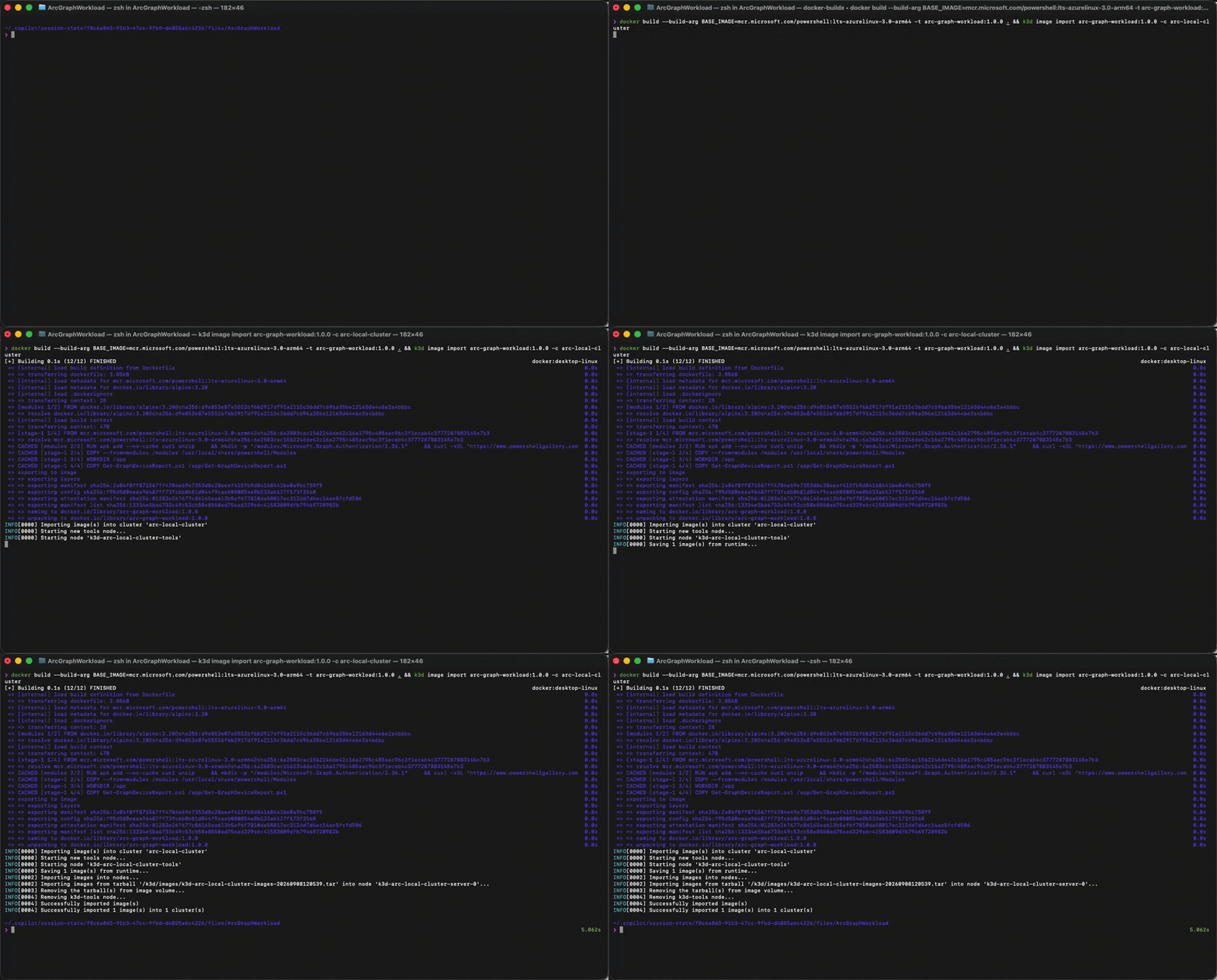
Build it, then push it straight into the cluster. k3d will side-load an image for you, so there’s no registry to stand up and no push to anywhere:
docker build --build-arg BASE_IMAGE=mcr.microsoft.com/powershell:lts-azurelinux-3.0-arm64 -t arc-graph-workload:1.0.0 .
k3d image import arc-graph-workload:1.0.0 -c arc-local-cluster
Running it as a CronJob
Now we wrap it in something that runs on a schedule. Let’s create a file named graphDeviceReportCronJob.yaml:
apiVersion: batch/v1
kind: CronJob
metadata:
  name: graph-device-report
  namespace: workload-identity
spec:
  schedule: "0 7 * * 1-5"
  concurrencyPolicy: Forbid
  jobTemplate:              # everything below here describes a Job...
    spec:
      backoffLimit: 2
      activeDeadlineSeconds: 600
      template:             # ...and everything below here describes a Pod
        metadata:
          labels:
            azure.workload.identity/use: "true"   # <-- the label belongs here
        spec:
          serviceAccountName: kv-reader
          restartPolicy: Never
          containers:
            - name: graph-device-report
              image: arc-graph-workload:1.0.0
              imagePullPolicy: IfNotPresent
Read the placement of that label very carefully, because this is the one that will cost you an afternoon.
THE LABEL GOES ON THE POD TEMPLATE, NOT ON THE CRONJOB.
There are three metadata blocks nested in that file and only one of them counts. Workload identity works by inspecting pods as they get created, and a CronJob isn’t a pod - it’s a thing that creates Jobs, and a Job is a thing that creates Pods. The template: block right at the bottom is the only part that actually describes a pod, so it is the only place the label does anything.
Put it on the CronJob’s own metadata and you get precisely nothing. No error, no warning, no hint. Your job runs, your container starts, and then it falls over on the first line looking for environment variables that were never injected:
Exception: /app/Get-GraphDeviceReport.ps1:57
Line |
  57 |          throw "$name is not set. Is the azure.workload.identity/use l …
     | AZURE_CLIENT_ID is not set. Is the azure.workload.identity/use label on
     | the pod template?
A couple of other choices worth explaining. restartPolicy: Never means a failed attempt leaves its pod behind, so the logs of the run that broke are still there when you go looking. And imagePullPolicy: IfNotPresent matters because we side-loaded the image, so there is nowhere for k3s to pull it from if it decides it wants a fresh copy.
Apply it, then trigger a run immediately rather than sitting around until 7am:
kubectl apply -f graphDeviceReportCronJob.yaml
kubectl create job graph-device-report-manual --from=cronjob/graph-device-report -n workload-identity
kubectl logs job/graph-device-report-manual -n workload-identity
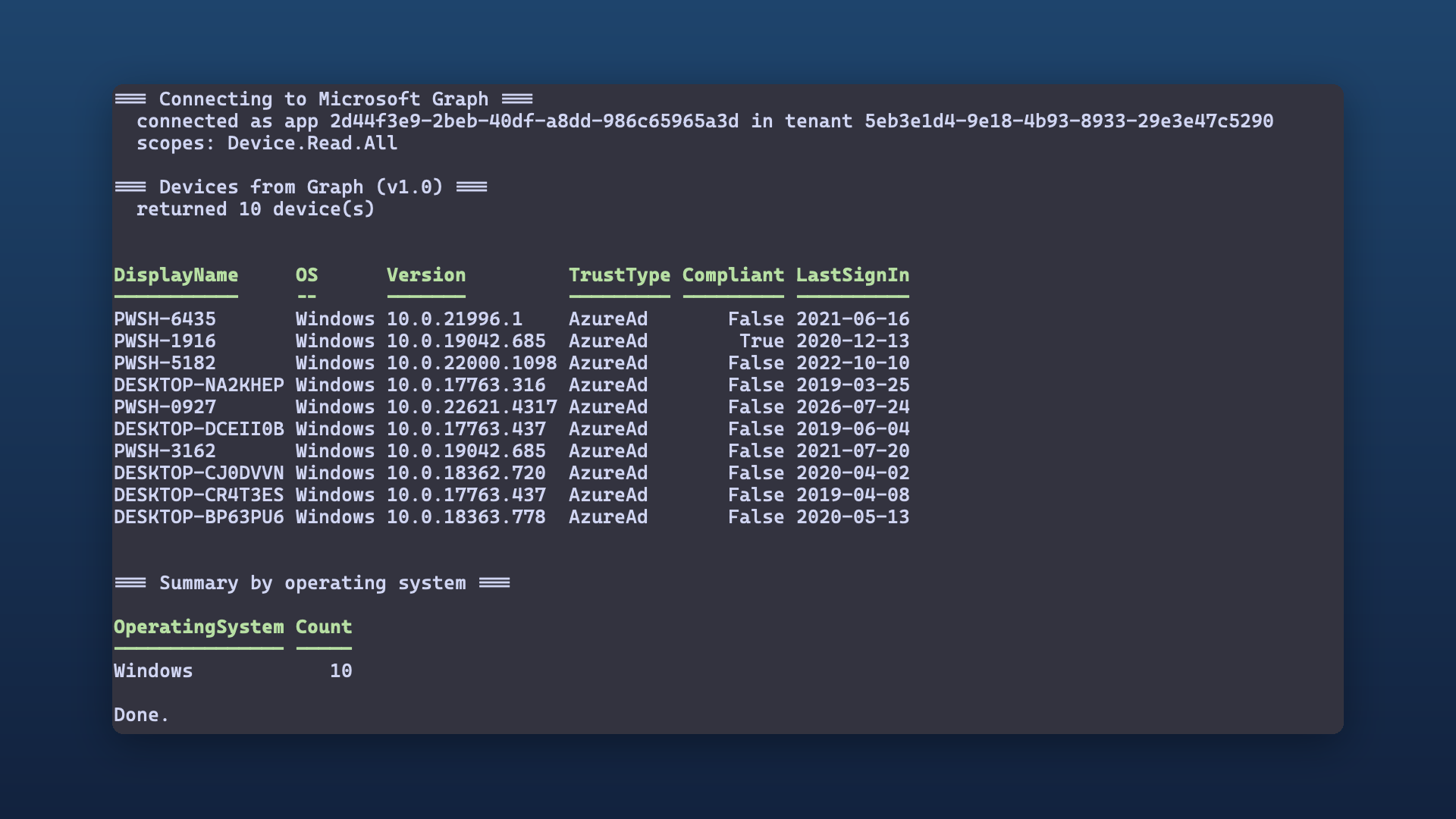
And there it is - a pod on a cluster sitting under my desk, reading my Intune device estate out of Microsoft Graph, with no app registration, no client secret and no certificate anywhere in the picture!
What we would still want before shipping this
I am not going to pretend this is production. The output goes to stdout, which is not a strategy - the only way to read this report is to go and ask the pod for its logs, which rather defeats the purpose of running it on a schedule. Nothing tells you when it fails, either, and a CronJob that has quietly stopped working looks identical to one that has nothing to report.
The access token lasts a bit under 24 hours, which is fine for a report that finishes in eight seconds, but a long-running job would need to re-read the assertion and get a fresh token mid-flight. And the image has a version tag that I will absolutely forget to bump.
But here’s the part I keep coming back to. Nothing in that CronJob manifest knows or cares that the cluster is a k3d container on my laptop. Same labels, same service account, same federated credential, same image. Point it at AKS and it behaves identically, because the trust relationship is between Entra and an OIDC issuer, and Entra has no opinion about where that issuer is hosted. (which I think is pretty cool!)
Conclusion
So that’s the trilogy done. We connected a local cluster to Azure with Arc, we taught it to authenticate to Azure without secrets, and now we have it doing real work against Microsoft Graph on a schedule - using manifests that would deploy unchanged into a managed cluster.
If you’ve made it this far, congratulations! You now have a pattern for running scheduled Graph automation that has no credentials to rotate, no certificates to expire at 2am on a Sunday, and no app registration slowly accumulating permissions nobody remembers granting.
If you wanted to start building this out to be something more akin to production-ready, I would suggest looking at sending the output somewhere other than just pod logs - for example, a persistent volume, an external storage service, or a logging/monitoring system that can alert you to failures. There’s more you will need to do of course - but that’s a start!
As always, the code for today’s post is available on GitHub.